
Skip to content
Sugester Help

How to set the period after which messages are displayed as 'delayed'

Updated at: Number of views: 3307 1 min read
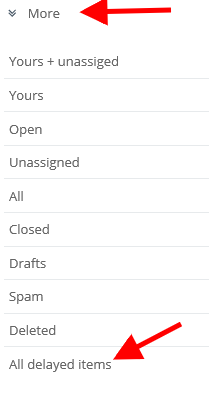
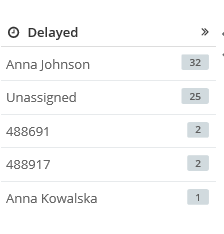
Sugester allows you to control time for responding to emails. This way your customers are more satisfied, because they can get response to their emails sooner. To set the period after which messages are displayed as 'delayed', go to Settings > Helpdesk settings  and input the desired number of hours in the field provided. Each email, which didn't get response in selected time, will be displayed on the right. Unfold 'More' and select 'All delayed items'. After clicking on the list, you will see who's got delayed emails (and how much emails does she/he have).  
Was this entry helpful?

Share

Comments