If you create a task, you can select the mapping type, so if we want to give a user a possibility to select a category, project, or a group in the form, then you should write as follows:
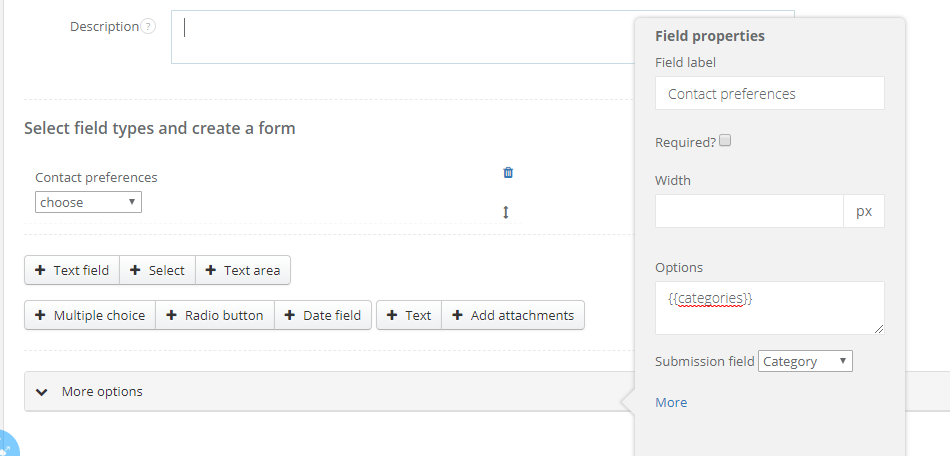
{{categories}}
{{projects}}
{{subprojects}}
{{groups}}
Below you can see how to create a drop down list box for a category:
We can also write categories manually. To do so, fill in the list by putting in following lines '|' sign, eg.
*1 | first category
*2 | second category
You can see it below:
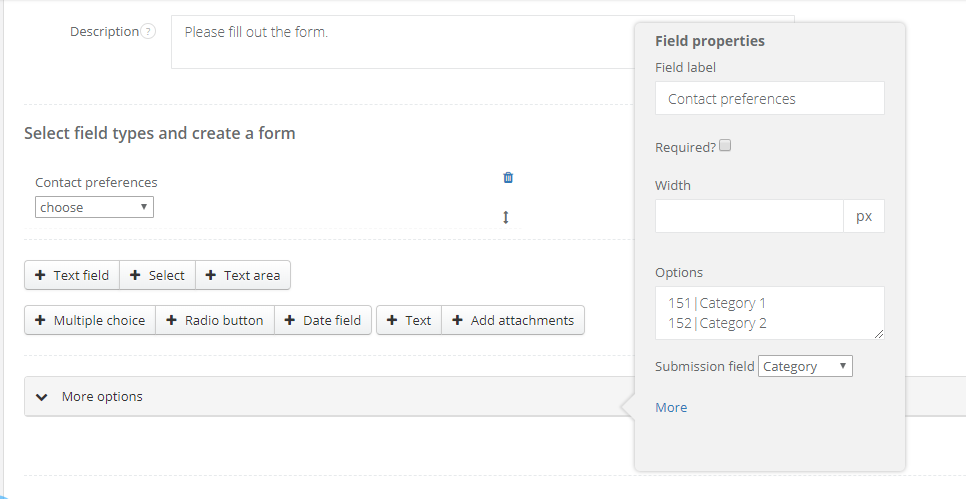
* 1 i 2 - here you should write down ID of the category you want to add to the drop down list. To copy the ID, just select Settings > Account settings > Categories > Tasks' categories > select a category. You will see the ID in the URL address and it looks similar to the one below:
https://YOURACCOUNT.sugester.com/app/categories/13204/edit
If you want to create a client, email or task in Sugester, after a client fills out the form - use the mapping feature.
Mapping kind - email
If you want to receive an email with results, after your client fills out a form, set mapping to email. In form settings unfold More options and click on Mapping window. Select Email type.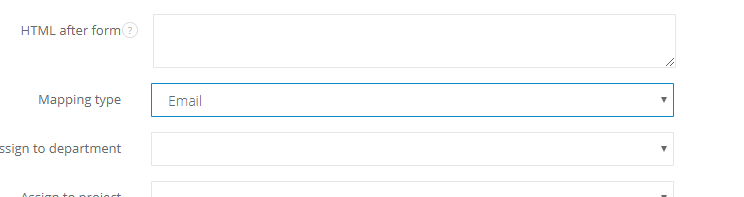
You will see a window The mailbox in the system to which the message should be sent - here you can select a mailbox which will receive form results.
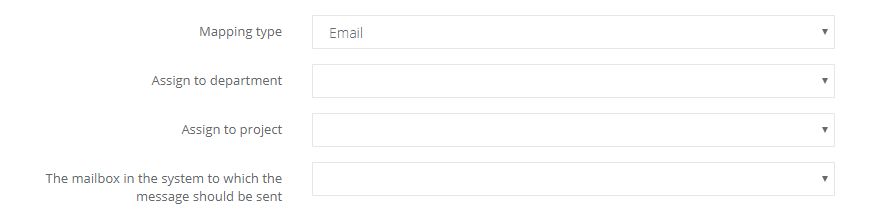
Do Sugestera przyjdzie mail z wynikami formularza. Tytuł maila będzie zaciągał się z pierwszego okna z formularza, który klient uzupełniał:

After you open an email you will see a questions from the form and client's answers:
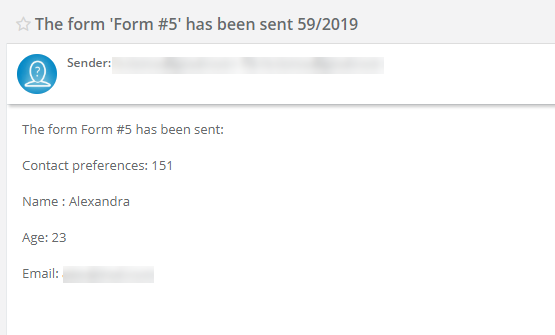
The respond to the email will go directly to the email address given by a client in a form.
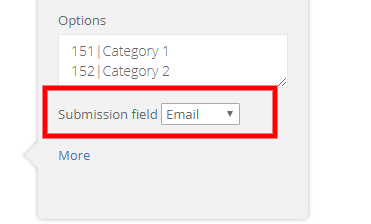
Note: While creating a form, please remember to set in one field (where a client will leave email address) Submission field as Email.
Mapping kind - task
If you want the system to create a task after a client fills out a form - use mapping to task feature.
In the Mapping type select Task.
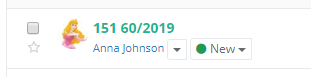
You will see a task in Unassigned folder.
Note: In the task's title you will see the information a client wrote down in the form's first title.
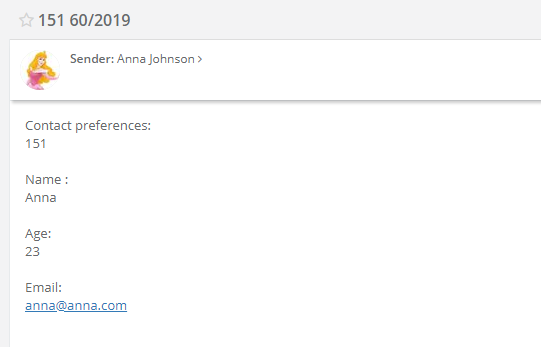
In the task's content you will see form's fields with a data written by a client
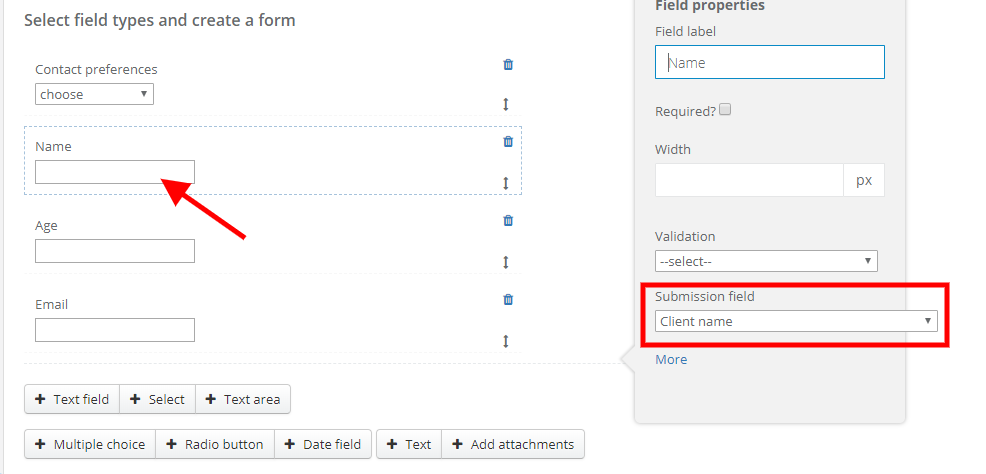
While creating a form you can decide which fields will match particular information in the task. To do that, after adding a field in the form, in the Field properties window you should assign the right Submission field.
You can use the following submission fields:
Title - information from this field in the form will be displayed as task's title
Content - information from this field in the form will be displayed as task's content
Priority - defined from 1 to 6, where 6 is the highest priority. In a task a number will be defined as a star (colours from white to red)
Category - information from this field in the form will be saved in the Category field in the task
Tags - information from this field in the form will be saved as tags in the task
Assigned to - always for the select field, you can select users from your company. After selecting a user in the form, a task in Sugester will be assigned to this user and show up in his/her inbox.
Client - after filling the form field with client's email address, a task will be automatically assigned to this client in Sugester (if a client already exists in the system)
Mapping kind - client
If you want to create a client after someone fills a form, in Mapping type select Client.If a sensitive data should be hidden in client's profile, mark the Sensitive data checkbox

Additionally, you can decide what kind of information from the form will be saved in client's profile.
All you have to do, is to assign the right submission fields.
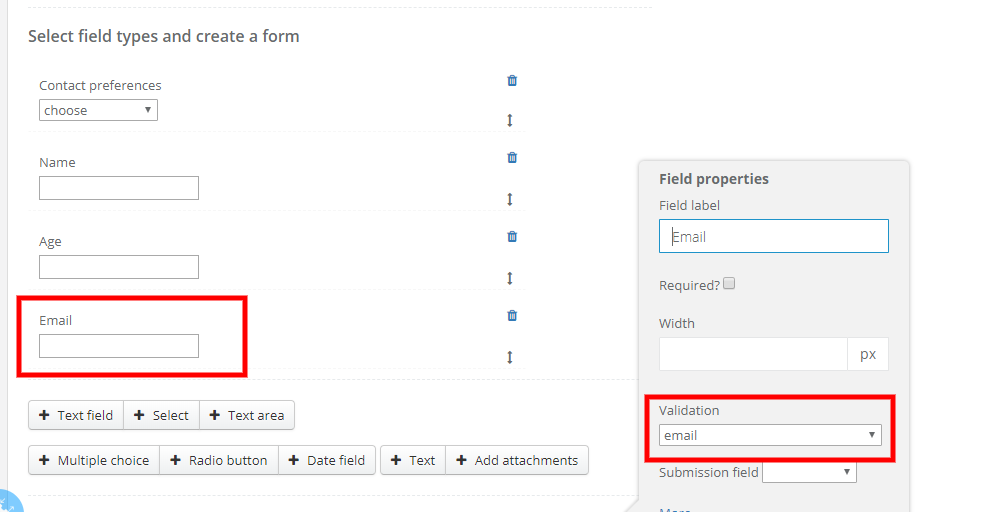
If you add to your form an Email field, and you want the system to check if an address is correct, select Validation to Email.
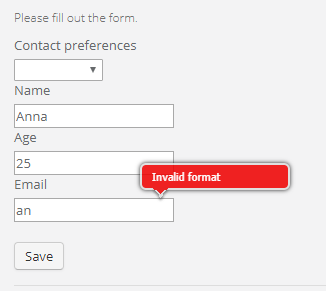
With this feature the system will check if an email address is correct. If an address is not correct, a client will see a note:
Note: If you want to add to a form field that don't exist in client's profile, first you have to add them as Custom fields.