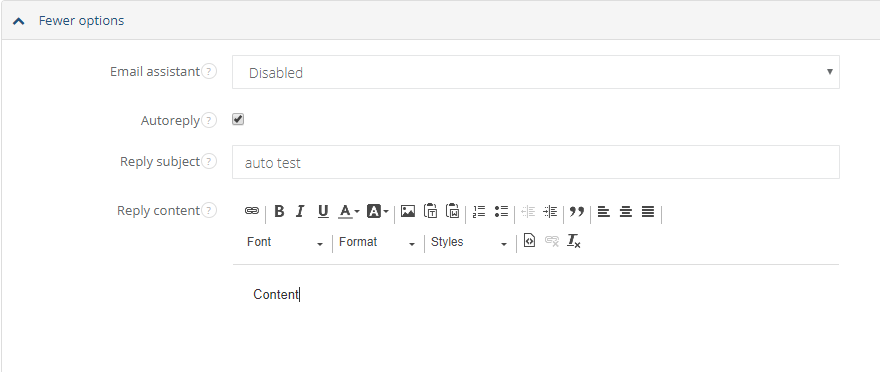
Autoreply can be set up for any mailbox you have in Sugester. For example: if one of your addresses is help@company.com, all emails sent to this address can receive an automated reply with predefined content.
A good use for automatic replies is informing your customers that their question has been received and is now being processed. You can also include a time estimate or other general information.
To set up automatic responses for one of your mailboxes, go to Settings > Email settings > Email boxes, choose one of your mailboxes and click on its name. You will see all the settings available for this mailbox. Scroll to the bottom to find a checkbox marked Autoreply. After ticking it, you will see two options:
-
Reply subject can be left empty - by default Sugester will generate a subject based on your customer's e-mail subject by adding RE: in front of it.
If you choose your own subject, it will remain the same for every automatic reply.
You can also take advantage of our Handlebars variable {{subject}} here. An example use would look like this: Your e-mail titled '{{subject}}' has been received. -
Reply content cannot be left empty. As with all emails edited in Sugester, you can use HTML and Handlebars variables.
Available variables are:
{{subject}}
{{number}}
{{body}}
{{footer}}
After you've written your message, click 'save changes' to enable the autoresponder.