Statuses allow you to quickly filter projects, thanks to statuses we can track the progress of a project at any given moment.
In this article, you’ll find:
- how to add a new status
- how to change the name of a status
- how to give a status a color
Adding a new status
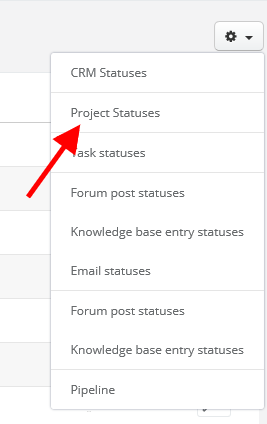
In projects you can define the names of statuses. As is the case of statuses in other modules, you can add a new status by going to Settings > Account Settings > Statuses, click the icon in the top right corner and from the dropdown menu select Project statuses.
To add a new status click the +Add status button and enter the name of the new status.
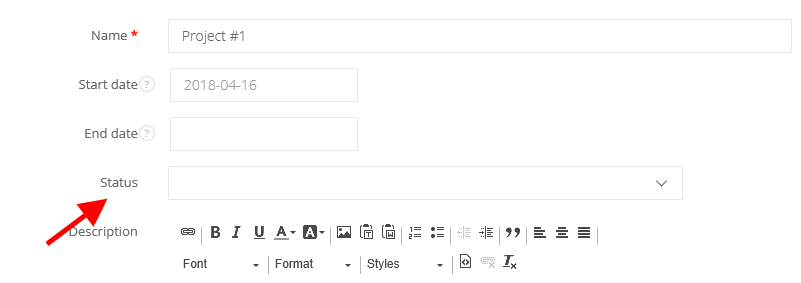
From now on whenever you add a new project you will be able to set its status.
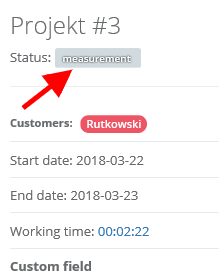
The status will be visible both on the project list and the project card.

Changing the status name
To change the names of default customer statuses, navigate to Settings > Account Settings > Statuses, next click on the key wrench icon on the right side next to the name you want to change and select Edit.

Adding colors to project statuses
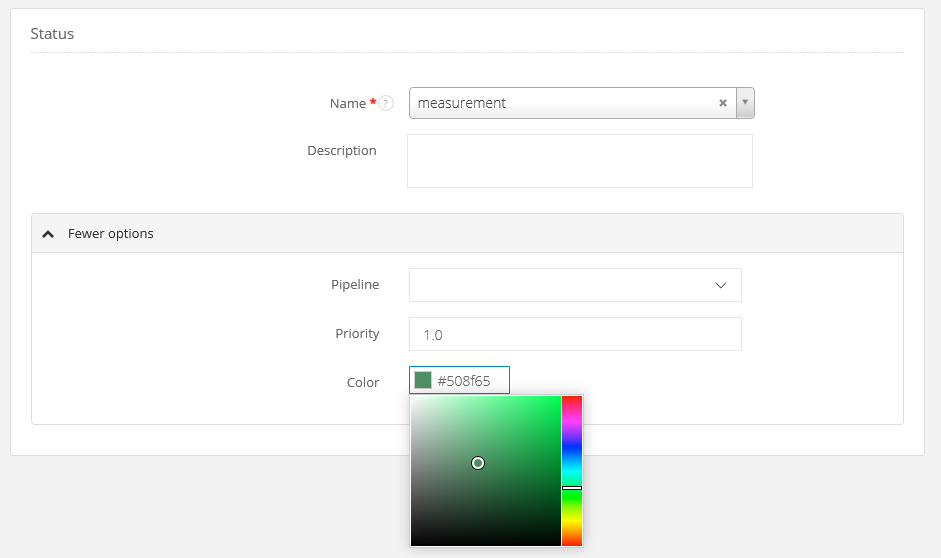
Navigate to Settings > Account Settings > Statuses, click on Edit > More Options and from the color palette select the color which you wish to characterize this status with.