Follow the steps below to add Sugester live chat to your WooCommerce web store or WordPress website:
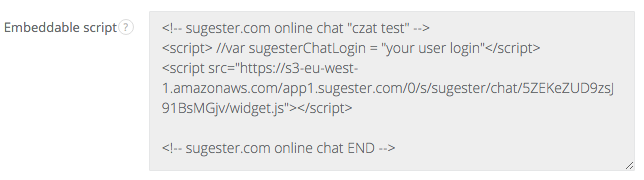
- Copy your Sugester live chat script to the clipboard or a text file. You can obtain your embed code by going to Settings > Live chat settings in your Sugester account. Your snippet will look similar to this:
- Login to your WordPress or WooCommerce admin panel. Its URL will look similar to www.yourpage.com/wp-admin.
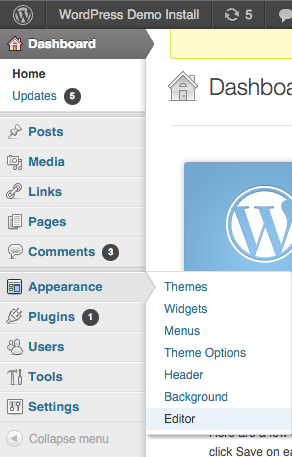
- In the left-hand side menu click on Appearance and select Editor.
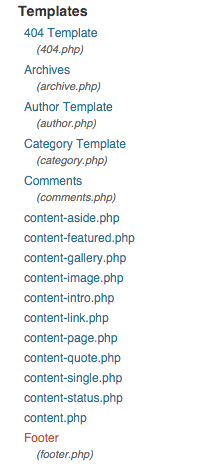
- In the right-hand side menu find Footer and click on it.
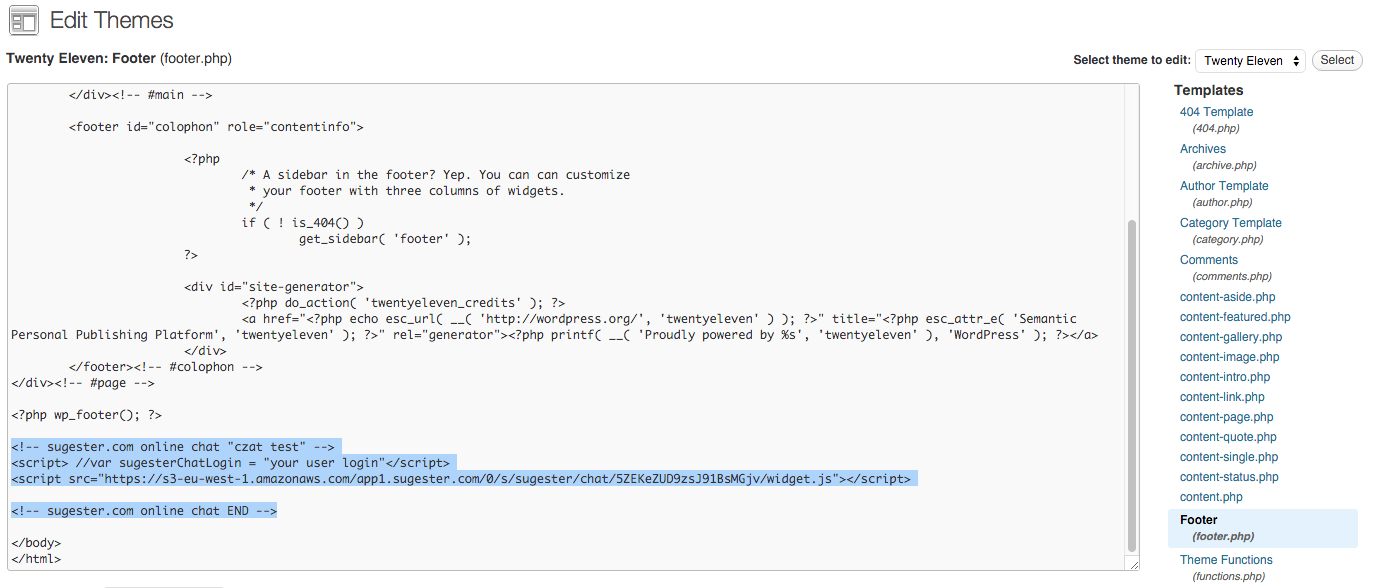
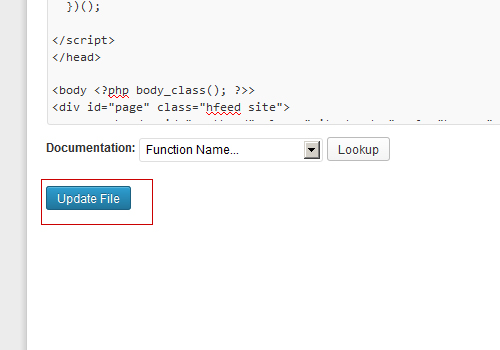
- You will see a code editor. Scroll to the bottom and paste your embed code just before the </body> tag.
- Save changes by clicking on the Update file button.
- Done! Sugester live chat will be visible on your website/webstore.