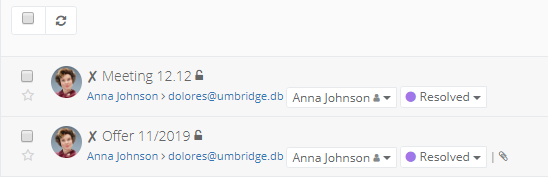
You will see an avatar every time you contact your client - in emails, tasks, VoIP calls and chats.
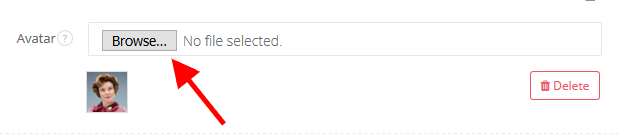
You can add pictures in .png, .jpg, .gif. Big pictures are automatically reduced.
Note: it's best to select pictures in a square shape :) Thanks to avatars you will easily match an email with a company, as you will see their logo/picture on the left side of an email.