If a sender already exists on your clients' list, but used another email address this time, you can also add a contact from Inbox view.
Thanks to this feature all emails will be assigned to a client and you will find them in client's profile. It makes it easier to manage a contact with your clients.
To add a new client/add a new email address to an existing client, just click on the cog icon in Inbox, by the right side of an email. Next, select Create/merge client.
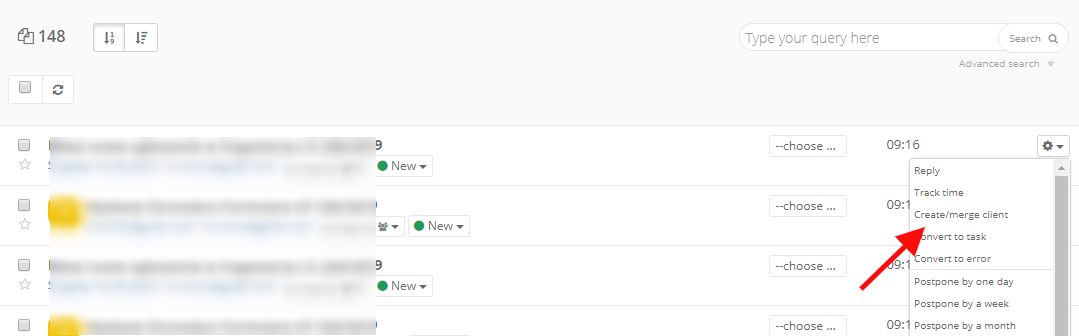
After selecting this feature you will see a window, where you can select if you want to create a new client, or add new contact to existing one.
Adding a new client
If you add a brand new client, fill in the name, email and phone number. If your client uses a company domain, you can also mark Add domain checkbox. The system will automatically fill the field in client's profile. If you mark Add domain, all emails from this particular domain will be assigned to the client. Also in the situation, when a client send you an email from the new address, but with company's domain. It prevents you from creating duplicated records.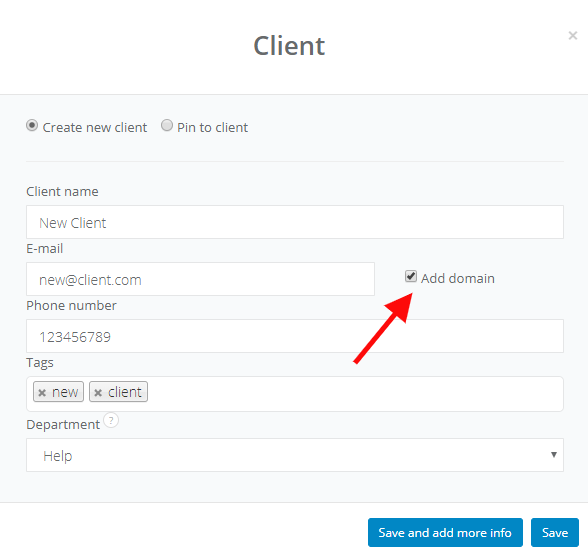
Pinning a contact to an existing client
If you choose this way, in the Select client field you will find a list of all your clients, so you can choose the one to which you'll add a new contact.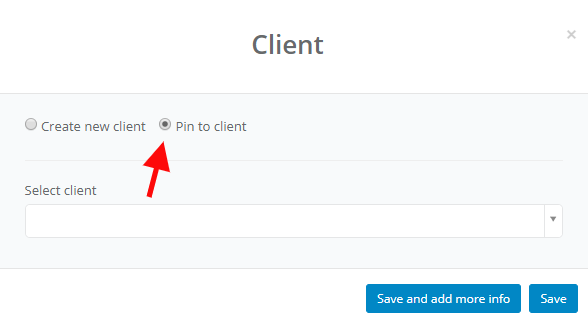
From this moment on, all new emails from particular email address (connected with a contact) will be marked with client's avatar (you can replace it with manually attached client's logo) and will be visible in Inbox and client's profile.