In this article you will find:
- how to import your client database into Sugester
- what a duplicate strategy is
- which data connects contacts with clients during new imports
Importing contacts to clients
Importing contacts is done analogically to importing clients. Navigate to Settings > Imports > New Import > Import contacts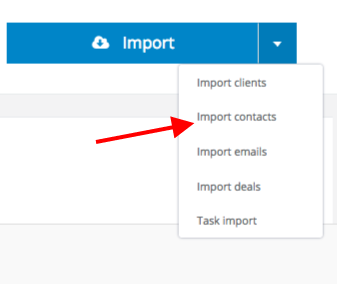
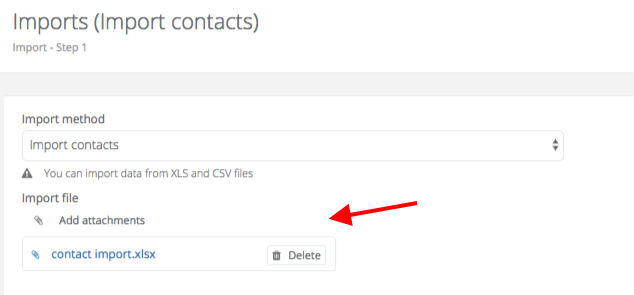
Add the corresponding file in either CSV or XLS format.
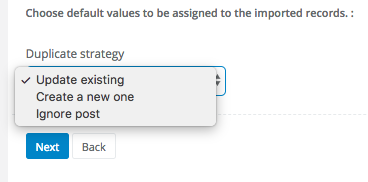
Select the appropriate Duplicate strategy and press Next
Depending on the size of the file the loading process may take up to a few minutes - wait for it to complete.
The most vital thing for this step is properly attributing the columns. Above every column with contact there will be a menu where you can select the appropriate field for which content should end up in this column.
So, if the given column is to contain email addresses - select Email from the drop down menu. If it should be VAT numbers - select VAT Number from the menu. If the file contains a heading, please mark the checkbox File has a header in the top left corner.
When finished press the Finish import button.
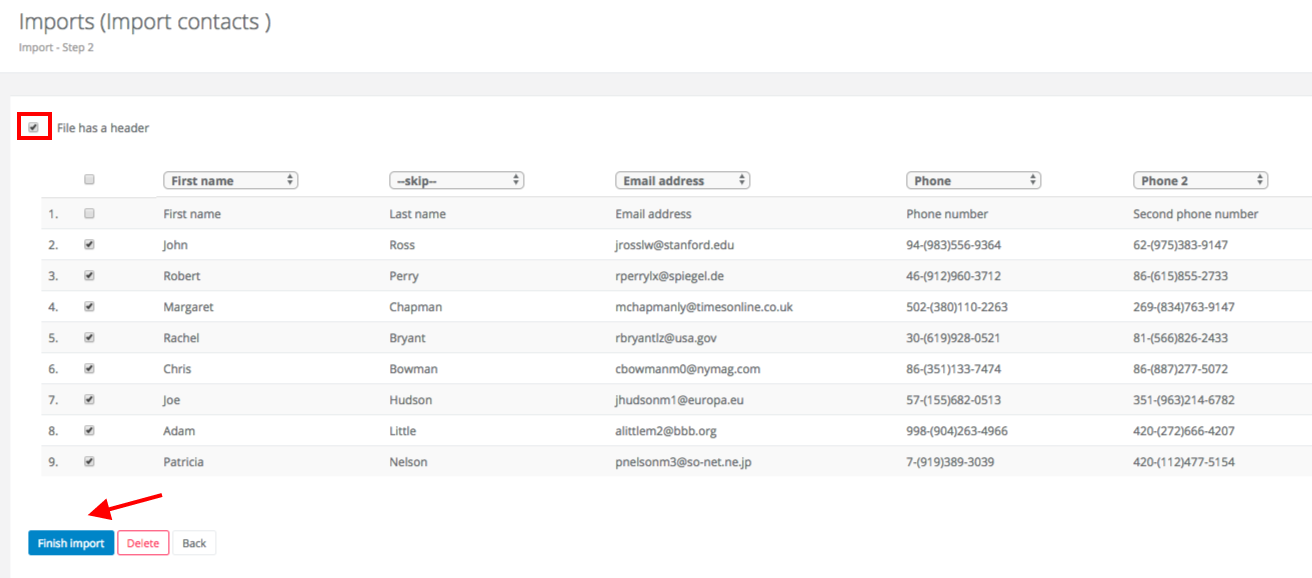
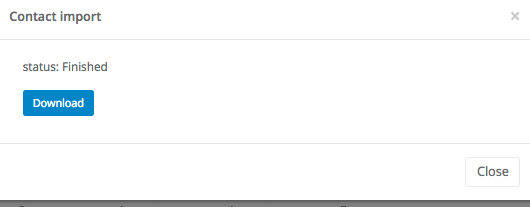
After importing the data the system will once again take you to the import history table where you will be able to check the records and see if there were any issues.
Duplicate Strategy
Just like when importing clients, you can select a Duplicate strategy. You can choose one of the following options:- Create new - means, that during the import which you are conducting the system will add all records, regardless of any duplicates that can be created in your file.
- Update existing - means that during import the system will always overwrite existing data.
- Ignore input - means that the system will omit importing records which already exist within the database.
Linking contacts to clients
If every now and then you upload a new database and you utilize the duplicate strategies Update existing or Ignore input, you should remember that the system will link clients based on the data below in the following order:ID, Client's ID, Tax ID, Client's name, phone, email
What this means is that when you are uploading a new database and you have marked the checkbox Update existing the system will first try to adjust the records using the column Client ID, if no ID is found - it will look for the VAT number, if the VAT number is not found it will move to the email and so on.