Below you can find an example of assigning privileges to a Manager and a Salesman
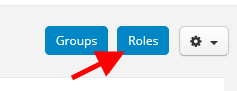
1. In order to give the user the role of the Manager of the selected department (he sees the contacts of his salesmen - from a given department), the appropriate role should be created first. To do this, navigate to Settings > Users menu and click the Roles button in the upper right corner, and then + New role
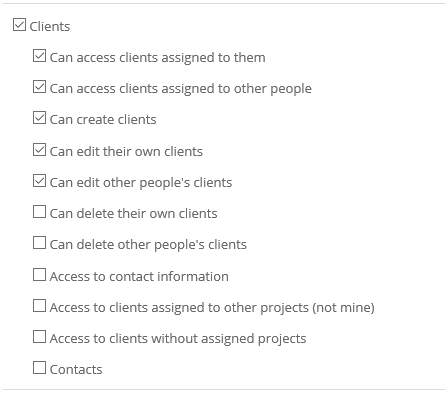
Properly name a given role, eg Department Manager, and then in the Clients section, mark the following options (or more, depending on your needs):
After having done this, navigate to Settings > Departments and add the appropriate department (eg Mazovia Department), which you can use to assign a Department Manager to.
Finally, go to Settings > Users menu and click Add User, fill in the data and select a department for the user (Mazovian Department), in which he will be the manager, and choose the role that we created the ‘Department Manager’.
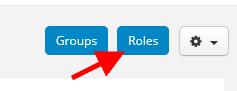
2. To create the role of a salesman / department employee who will only see contacts that he has added, go again to the Settings > Users menu and click the Roles button in the upper right corner, then + New role
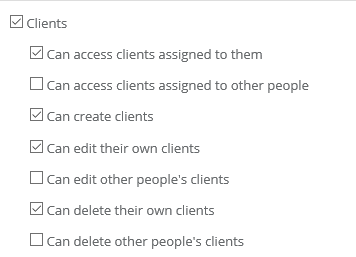
Name the given role, eg Salesman, and then tick the boxes below (or more):
Finally, go to the Settings > Users menu and create a new user and in the Privileges field, select the role you just created and the department to which the salesman should have access (Masovian Department).