Scrum Sprints will be a great solution, if you have to do a project, which goal is to give your client eg. new feature, strategy or a product. Thanks to work division in Scrum Sprints you're able to plan tasks to do in defined interval (usually 1 week). This way you can see your team's progress and how many tasks you have left this week.
If you add a task to a Sprint, you can create a whole map of your team's work and monitor the process, thanks to percentage calculation of done tasks (compared to ones you planned to do).
Scrum Sprints will not only help you in reaching your goal, but will also diagnose how work is done in your company, how effectivness looks in your team, or if tasks planning is properly scheduled and if you estimate 'production capacity'. You will see exactly how the situation looks and motivate you to make some changes in organization, if needed.
In this article you'll learn:
- how to enable Scrum Sprints
- how to add new Sprint
- how to add a task to a Sprint
- describtion of a Sprint view
- how to edit a task i a Sprint
- how to close a Sprint
Enabling Scrum Sprints
If you want to enable Scrum Sprints, select Settings > Project settings and mark Scrum Sprints checkbox. Then hit Save on the bottom of the page.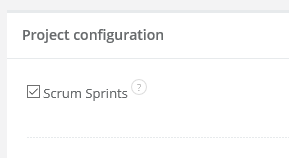
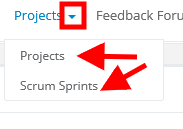
After saving the changes, in menu next to Projects you will see an arrow. When you unfold it, you can go directly to Projects or Scrum Sprints.
Adding Scrum Sprints
To add new Scrum Sprint, do as follows:1. Unfold the arrow next to Projects and select Scrum Sprints.
2. In the new window (top right corner) click on +Add.

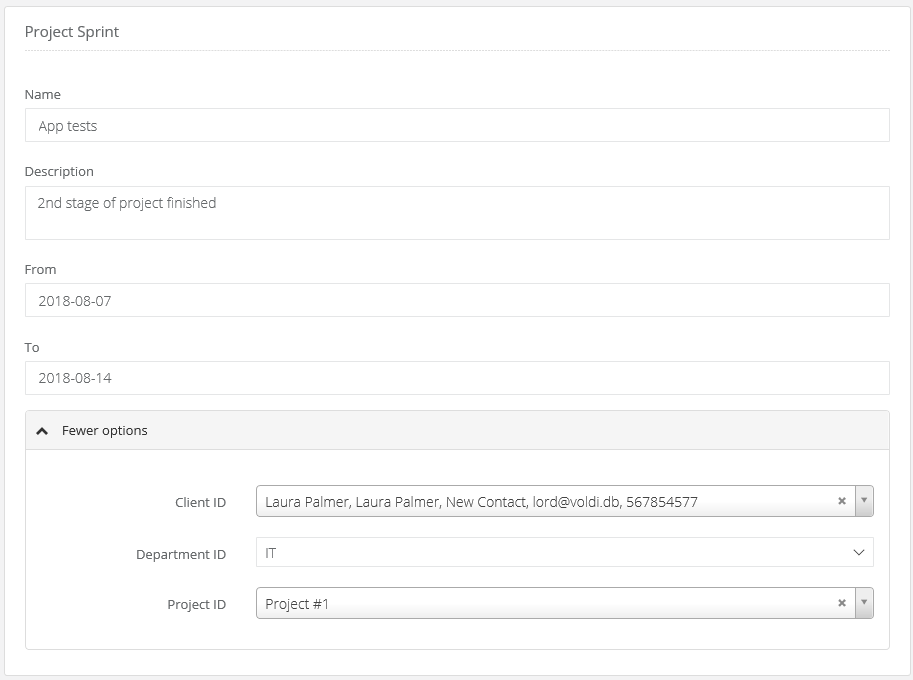
3. Fill the Sprint. Type in the name, time, you can also add a short describtion and select a client, department or a project:
4. Click on Save.
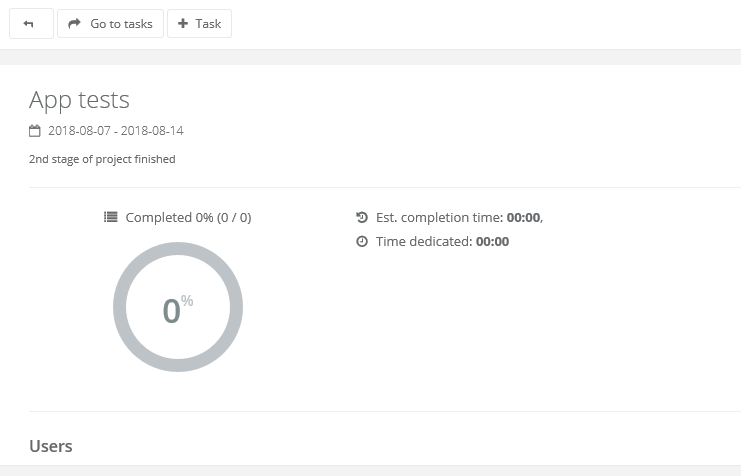
5. The system will transfer you to the Sprint view, where you can add tasks.
Adding tasks to the Sprint
If you want to add new task to your Sprint, just click on +Task in top left corner.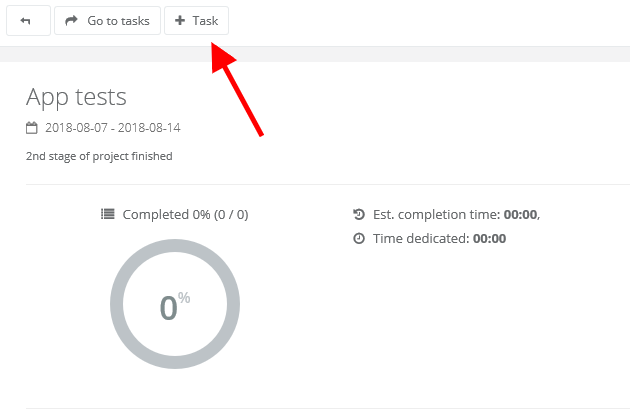
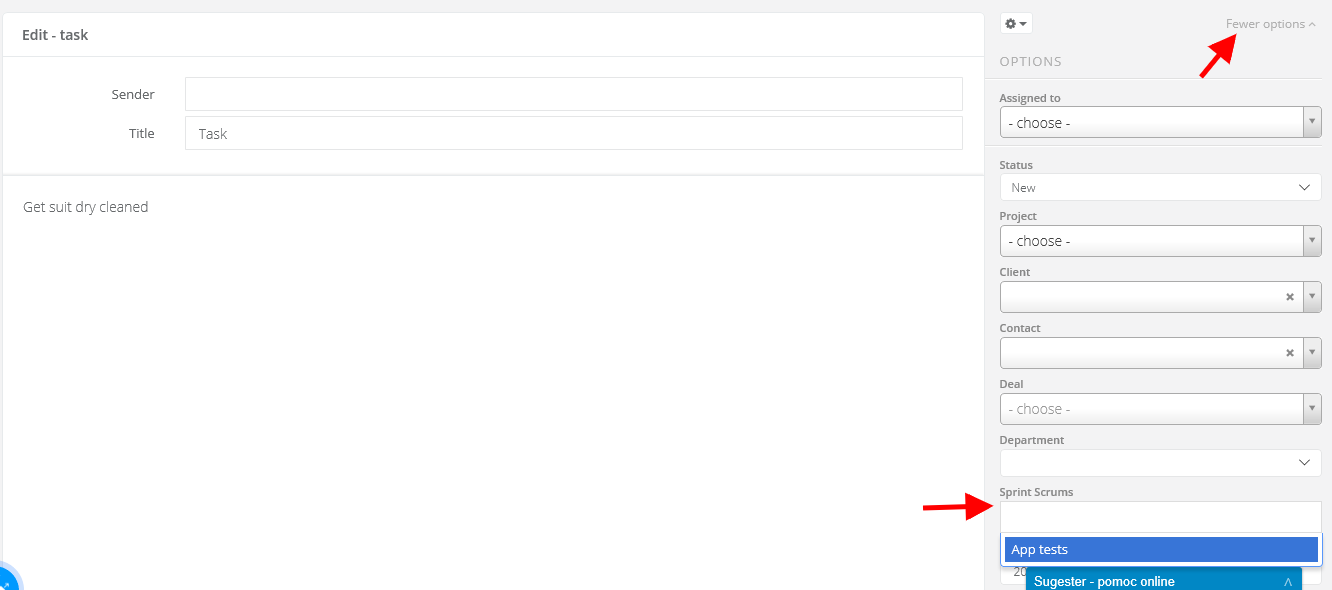
You can assign a task that already exists to a Sprint. To do so, select a task, unfold the arrow next to Reply button and click on Edit. Then click on More options and in Scrum Sprints select the Sprint you want.
Scrum Sprints view
After filling, your Sprint will look similar to the one below: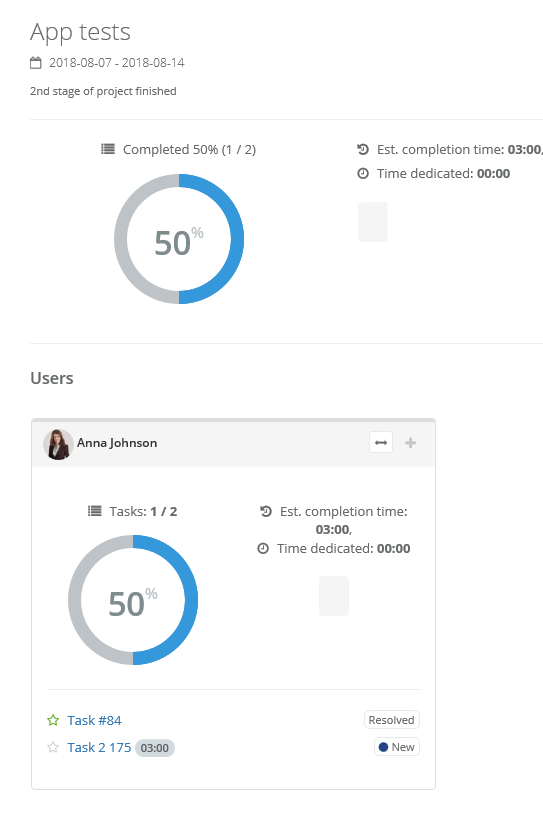
In a Sprint view you can see all of tasks assigned to a Sprint, divided by users in pie chart, which shows the percentage of resolved tasks planned for a Sprint. If you have more users assigned to a sprint, you will see as many pie charts as you have users, one for each user.
Przy każdym userze wyświetla się też tabela z jego zadaniami, priorytetem zadań i ich statusem. Dzięki temu osoba nadzorująca Sprint widzi postępy prac u każdego z userów. Next to each user you have a table with his/her tasks with priorities and statuses. In this way, your team's manager can control every user's work progress.
Tasks editing in a Sprint
To make some changes in Sprint's task, just go to task's status. You will see a little pencil - click on it and edit your task.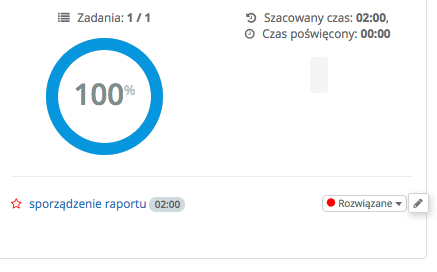
Closing the Sprint
After exceeding deadline (from 'To' field in Sprint's creation), it will close itself automatically.