This feature will come handy eg. when you want all responses from emailbox @complaints, that your co-workers are sending, to be also send to you in the copy. Thanks to Use auto BCC a user doesn't have to remember to add your email address to BCC manually - system will do it for him/her.
Remember, that the feature is enabled for one email box only. It means, that all emails sent from this email box will be automatically sent in the copy to recipients, whom you input in the email box settings.
Enabling 'Use auto BCC'
To do so, first you have to activate the feature on your account. Go to Settings > Email settings and mark the Use auto bcc checkbox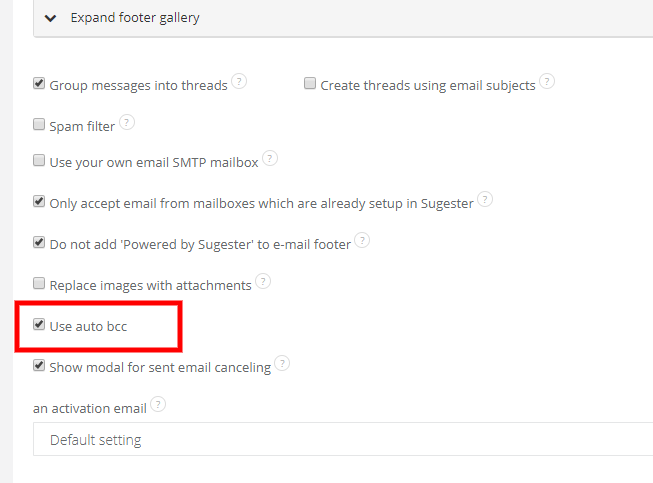
Then go to Email boxes and select an email box, for which you're enabling Auto BCC.
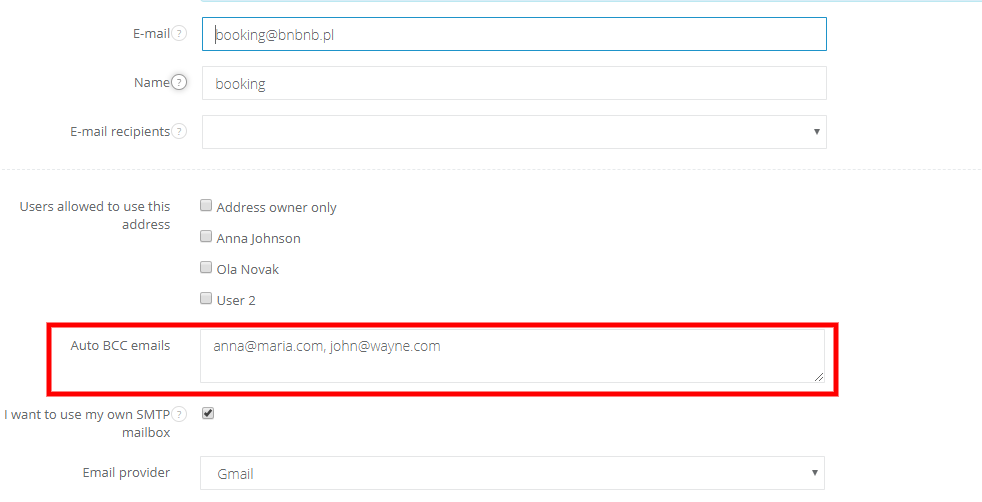
In email address edit, in the field Auto BCC emails, you can input email addresses of BCC receivers.
You can input several addresses separated with commas.
Email sending
After filling in addresses in Auto BCC emails, each time, when you send an email from the email box, its copy will be also send to receivers from the field. You cannot delete receivers whilst writing an email (they don't have 'x' on the left side).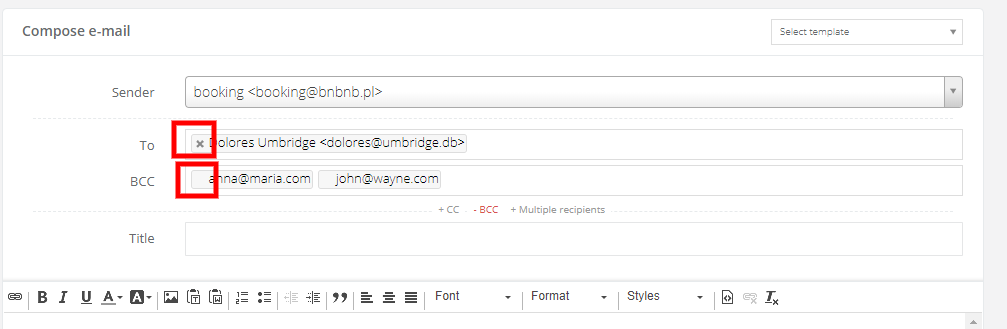
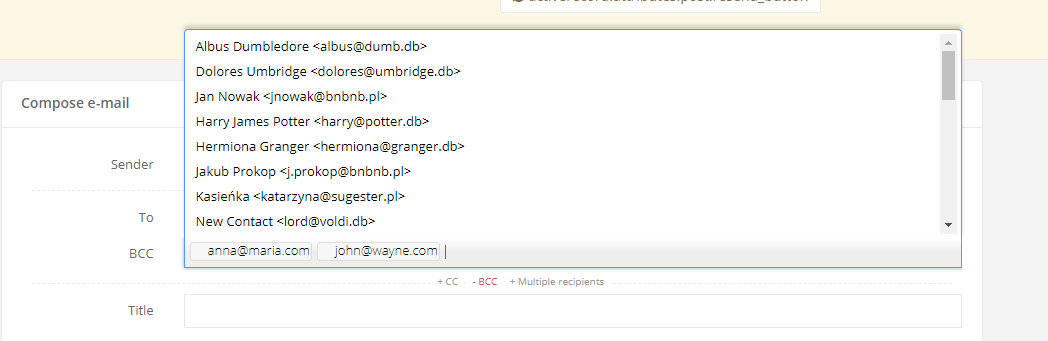
However, you can always add additional BCC receivers from your contact list. Just click on BCC field and select another one.
At any time you can change/delete automatic BCC by editing email box, for which you've activated this feature. In this field you can input up to 255 signs.