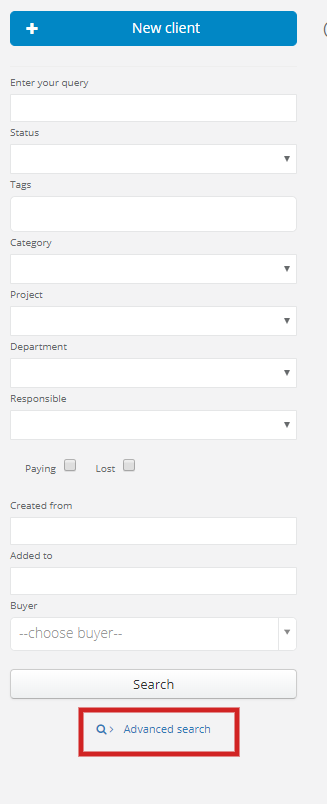
In this article you'll learn:
- how to search with multiple conditions
- how to save the result of your search
- how you can use search results in other features
Adding conditions
You can add any number of filters in your search. You will receive a list which contains parameters used for the search only.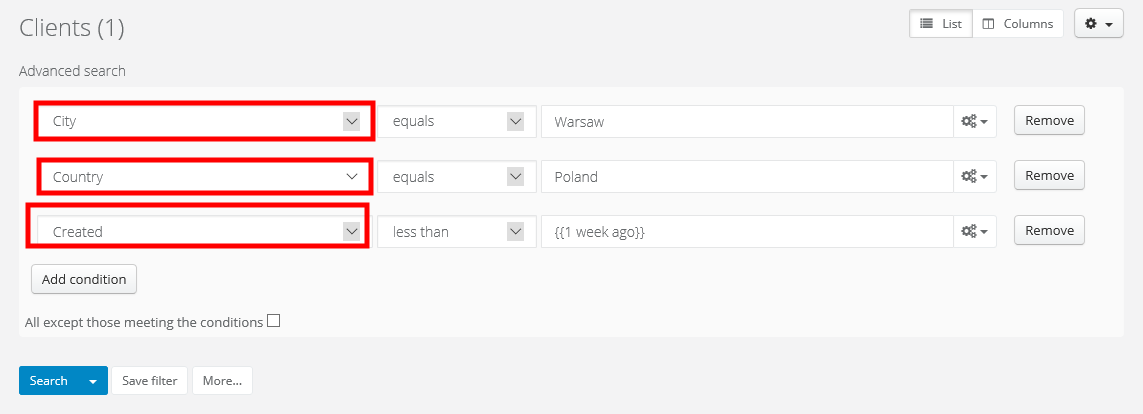
Above you can see an example with search for clients:
- who are from Warsaw
- who are from Poland
- who were created less than one week ago
Saving search filters
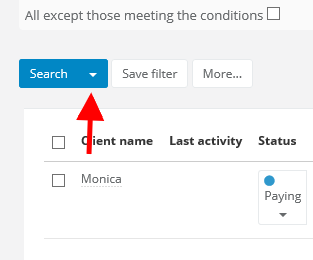
The system will remember each search result, you just have to click on Save filter. Thanks to this feature you will save a lot of time during next search with the same parameters. Additionally, saved filters can be used to more advanced settings or for Email campaigns.All saved filters you can find by unfolding the arrow next to the Search button. Just click on chosen filter if you want to go to the search results. Lists are dynamic. It means, that if you've added new records since the last search, they will also be displayed in the search results.
Automation based on search filters
Saved filters can be also used for reccuring tasks or email campaigns. In email campaign you can add a contact list based on clients' search Learn more about creating contact lists: Creating a contact list.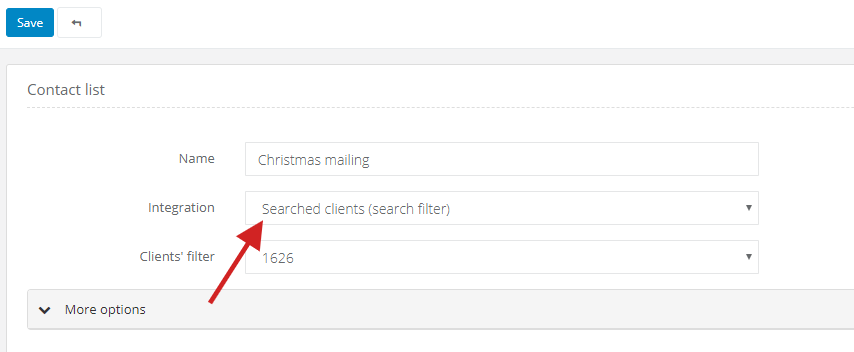
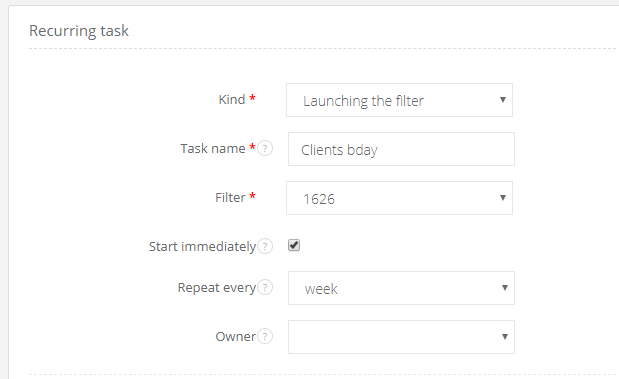
You can also use it in recurring tasks. Learn more about recurring tasks in the article: Recurring tasks.